
Agent Browser#
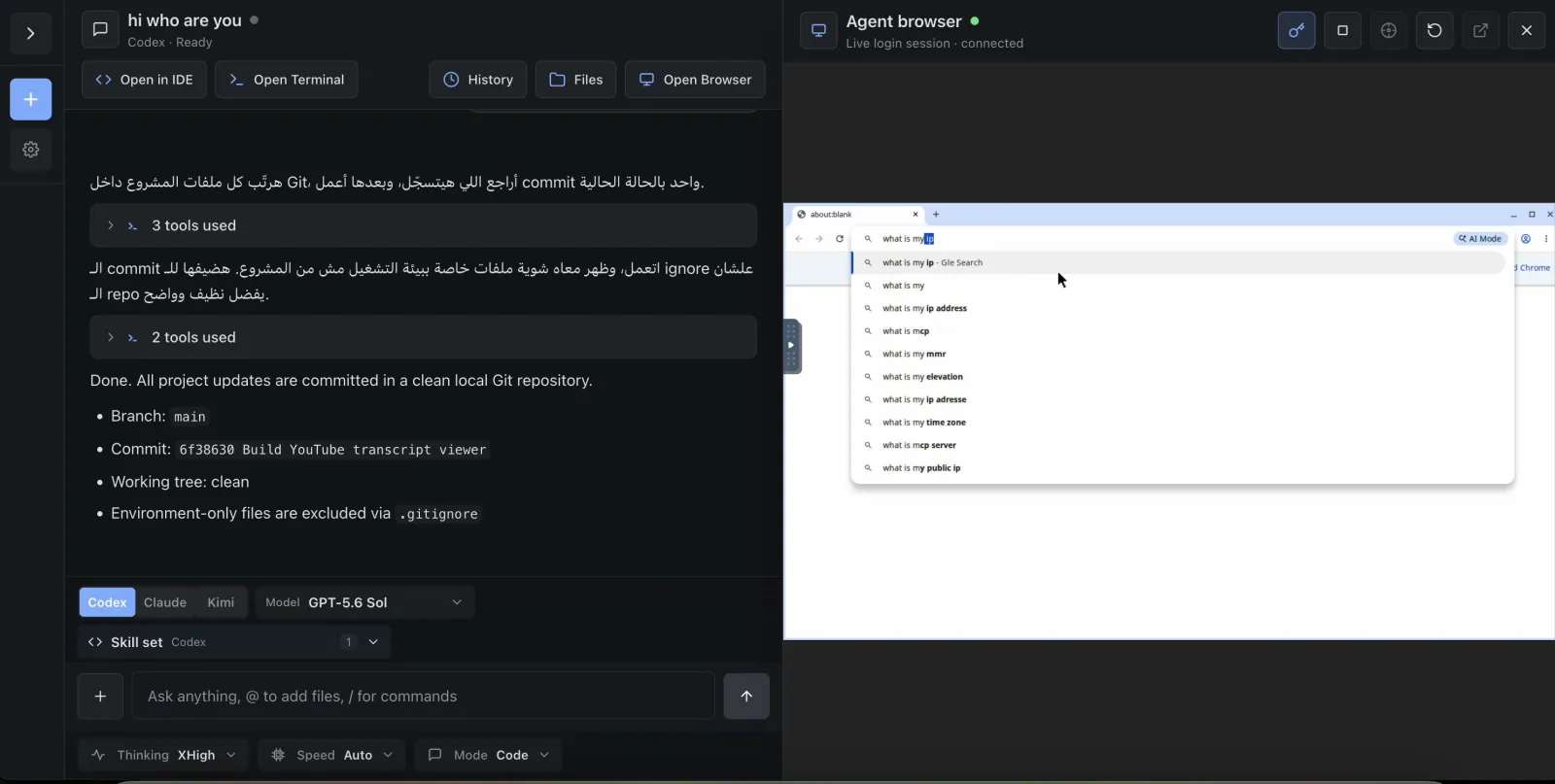
Agent Browser is one headed Chromium session shared by a person and an agent inside a project. Use it when the work depends on a real website, a visual login, consent, or another step that cannot be completed through the local app preview.
Before you begin#
- Use a project chat. Agent Browser is scoped to a project, not to one chat.
- For agent control, choose Claude, Codex, or MiniMax and add the
browserskill before sending the prompt. Kimi and Antigravity do not currently receive equivalent Browser MCP access. - Decide whether the selected agent may access the sites and account data in this browser profile. Login state is deliberately shared and persistent.
- Follow the target site's terms. Human intervention is not permission to bypass an access-control challenge.
Sign in once, then let the agent work#
- Open the project chat and select Open Browser.
- Select Agent browser — log into a site and let the agent drive it.
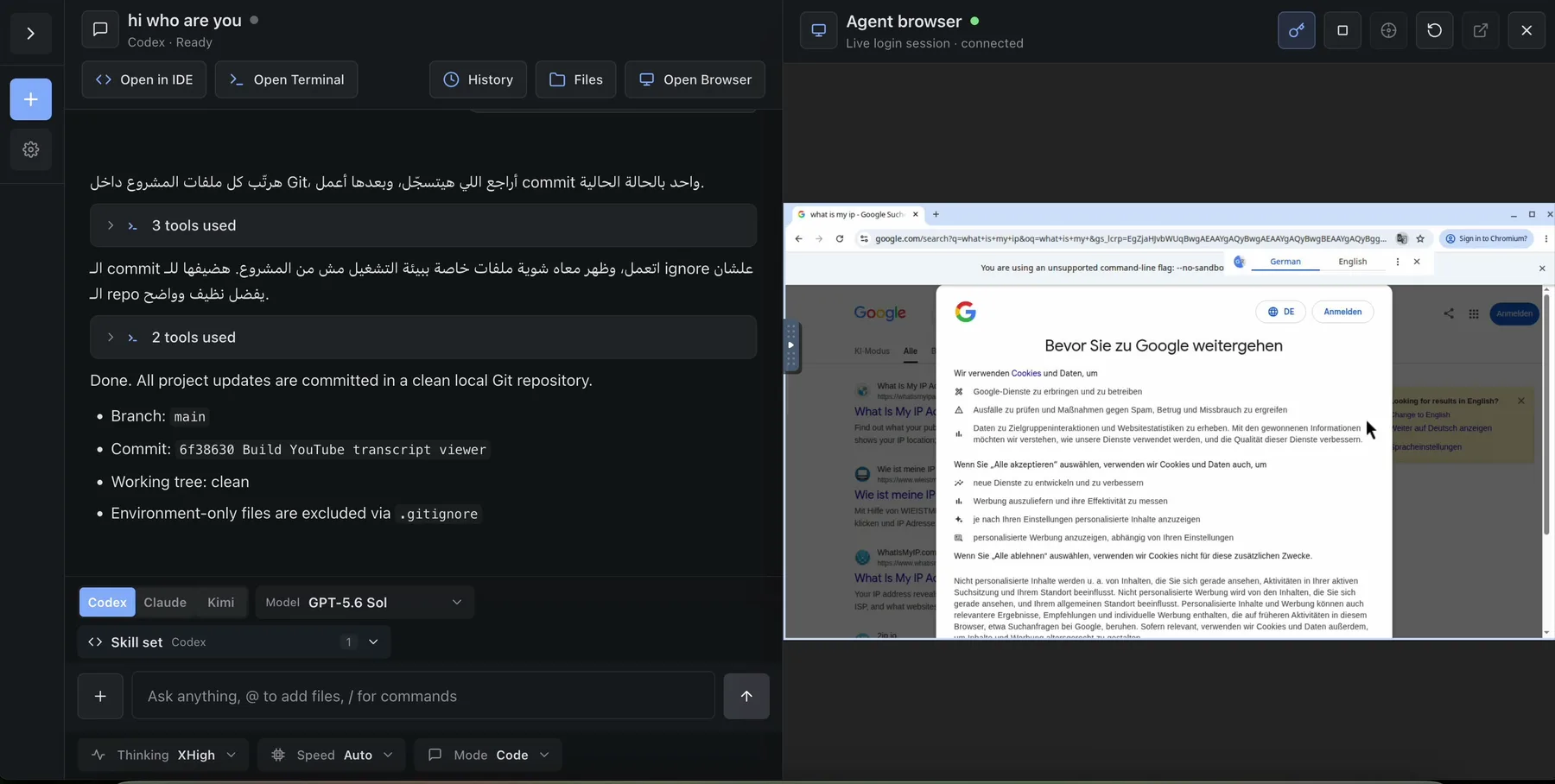
- Wait for the drawer title to change to Agent browser and for Live login session · connected. During startup it can read starting… or core ready.
- In the live browser, navigate to the site and complete the permitted login, consent, or account-selection steps.
- In the chat, select Claude, Codex, or MiniMax, add the
browserskill, and send a precise browser task. - Watch the same window. Take over with the mouse and keyboard whenever the site needs a human decision, then tell the agent to continue.
- When finished, either select Close browser to leave the agent-facing browser core available, or select Stop the agent browser to stop the complete stack.
Outcome: the human noVNC pane and the agent's CDP/MCP tools operate the same Chromium window and persistent profile. A login completed by the human is therefore immediately available to the browser-enabled agent.
Shared-session architecture#
There is one Agent Browser session per project, not one per user, chat, or agent run. Its viewport is fixed at 1366×768. Human and agent input can collide, so pause one side before the other types or clicks.
Start, close, and stop mean different things#
| Action | Human view | Agent-facing browser core | Profile and login data |
|---|---|---|---|
| Select Agent Browser | Starts or reconnects | Starts if needed | Reused |
| Select Close browser | Stops | Keeps running | Kept |
| Toggle back to app preview | Stops | Keeps running | Kept |
| Select Stop the agent browser | Stops | Stops | Kept |
| Replace the project container | Stops | Stops until restarted | Kept in durable workspace storage |
Closing the pane is therefore not a full browser stop. Use Stop the agent browser when the project should no longer have a live Chromium process. Stopping does not sign out of websites or delete the profile.
Idle reaping#
The backend checks browser activity every minute. It stops the complete stack after 20 minutes without pane or browser-enabled agent activity.
An attached VNC TCP viewer counts as an active viewer. Close or leave the pane if you expect the idle reaper to reclaim the browser. A browser-enabled agent run also sends activity heartbeats while it is using the session.
Security and operating boundaries#
- Every authorized actor and browser-enabled agent working in the project reaches the same profile and window.
- The profile survives normal container replacement, so cookies and site sessions can outlive one Chromium process.
- The browser has normal outbound network access; it is not restricted to project preview hosts.
- There is no per-task browser profile, per-chat session, or incognito boundary.
- A screenshot or noVNC view exposes what is on the virtual display. The agent can also read and operate pages through CDP.
- Stop semantics preserve the profile. Sign out on the website or clear its data when persistence is not desired.
- Some sites block automation. Do not defeat CAPTCHA, anti-bot, consent, or authorization controls that the site requires.
Treat the profile like a project credential store: only sign in to accounts whose scope is appropriate for every trusted agent and project collaborator.