
Chat and agent controls#
The controls above and below the composer define how the next prompt is run. They are stored on the chat, and most selections also become the starting preference for new chats.
When a user has no stored provider preference, Remote asks the backend module catalog for the default compatible with the chat's host/project scope. Codex is the current explicit built-in default; a deployment that changes the compiled catalog can choose another without changing chat or frontend switch logic.
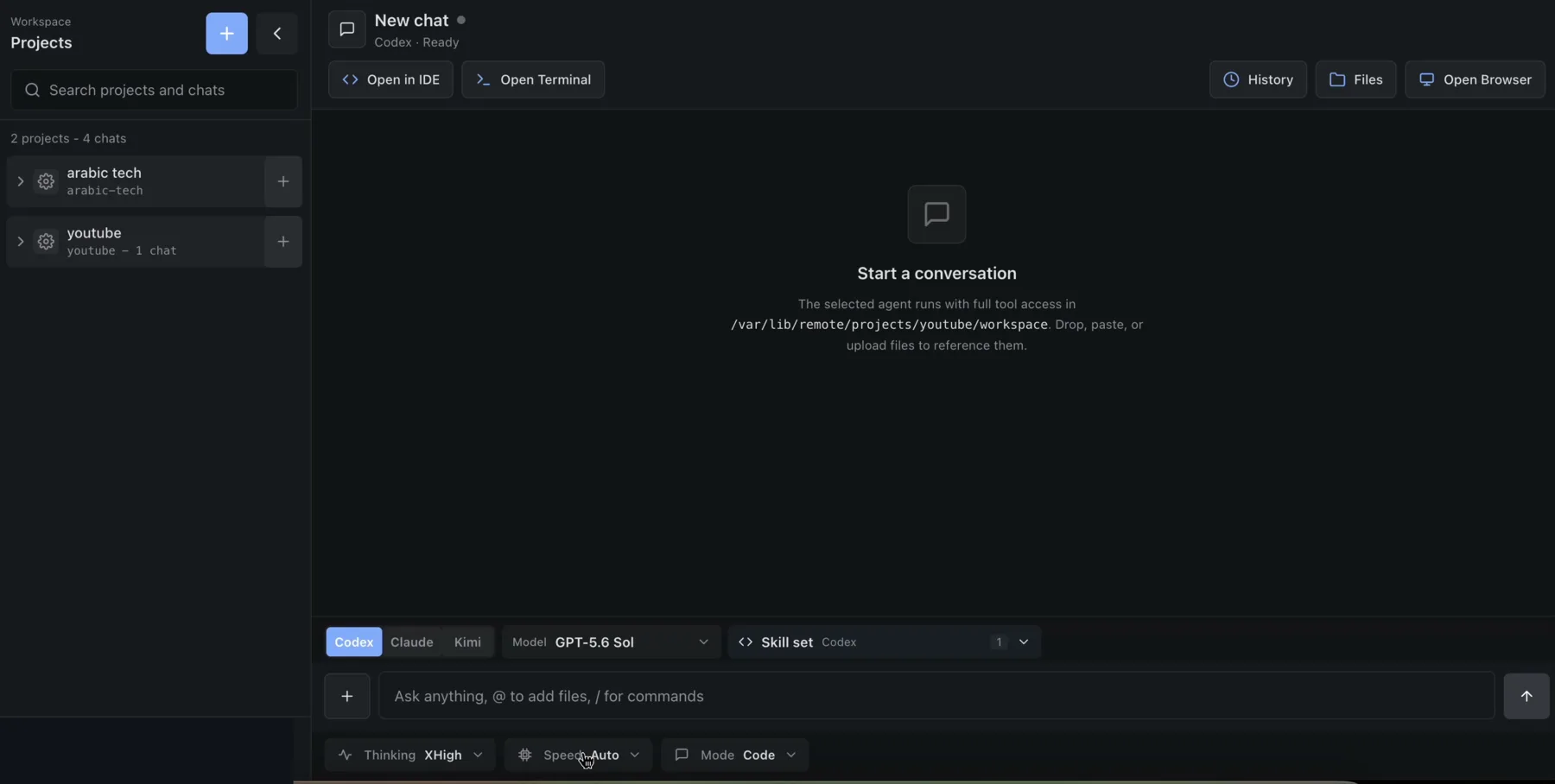
Configure a run#
Before sending a prompt:
- Select an available agent in the Provider toggle.
- Open Model and choose a provider-supported model or Auto.
- Optionally open Skill set, search the catalog, and select one or more skills.
- Set Thinking when the provider exposes reasoning effort.
- Set Speed when the selected provider and model expose a service tier.
- Set Mode for the task.
- Write and send the prompt.
Outcome: Remote saves the selections to the chat and uses supported values to construct the next provider CLI run. Provider, model, thinking, and speed cannot be changed while that chat is streaming. See the Kimi exception under Thinking and speed.
Provider and model choices#
Remote loads the provider list from its backend agent registry. For a project chat, the backend probes the provider CLIs installed in that project's container and normalizes their models, reasoning efforts, service tiers, and native-mode metadata into one catalog. Loose chats use the host CLIs instead. The composer therefore follows the installed CLI version and the connected account rather than a model list compiled into the frontend.
MiniMax appears only for project chats. Before an administrator saves its API key under Settings → Agents, the project picker shows it as locked under Sign in to use without exposing its models. It remains absent from loose-chat capability catalogs.
On a successful live probe, the model picker uses the catalog published through the selected CLI's discovery surface and shows its versioned display names. Codex pages through the app-server catalog. Claude attempts to resolve every /model selection (including best, 1M-context, and opusplan) so an alias such as opus is displayed as the concrete Opus version selected for the connected account. Kimi shows configured aliases with their provider model/display name and per-model effort metadata. Antigravity preserves the full display names returned by agy models, including thinking variants. MiniMax uses Remote's provider-owned catalog for MiniMax-M3; the Codex harness consumes the same catalog when it starts the model.
Remote still submits the provider's required selection value. For example, a Claude row labeled Opus 5 can carry the dynamic opus alias underneath; this lets Claude Code keep resolving account-specific model revisions without reducing the UI label to merely “Opus.” Auto and a conservative fallback catalog remain available when a CLI is older, unavailable, or signed out.
Auto omits an explicit model so the provider chooses its configured default. Its Claude label includes the currently resolved default version. Model availability and account entitlements are ultimately enforced by the provider; a listed choice can still fail if the connected account changes or loses access after the catalog is loaded.
Switching providers clears the previous model, reasoning effort, service tier, and selected skills because those values may not be compatible with the new provider.
Refresh model choices#
Start the project first, then open the provider/model picker and choose Refresh models when the installed CLI, CLI configuration, signed-in account, or account entitlements have changed. Remote keeps the previous choices visible while it asks the backend to probe the current host or project container again.
The shared backend result is normally reused for 24 hours. If any provider returned fallback data or a warning, Remote retries after 2 hours instead. Successful managed-provider authentication changes request a refresh for catalog scopes currently open in the browser, and using the UI's project Start action in the sidebar requests a refresh for that project. Starting or restarting from Project workspaces does not; choose Refresh models afterward. The result reflects the credentials currently present in the container, so if credential propagation happens during a later run, refresh again afterward. A backend restart also clears the in-memory cache.
Remote cannot detect a provider login performed manually in a project terminal. Always choose Refresh models after signing in to Antigravity, or after changing a provider's configuration in the terminal.
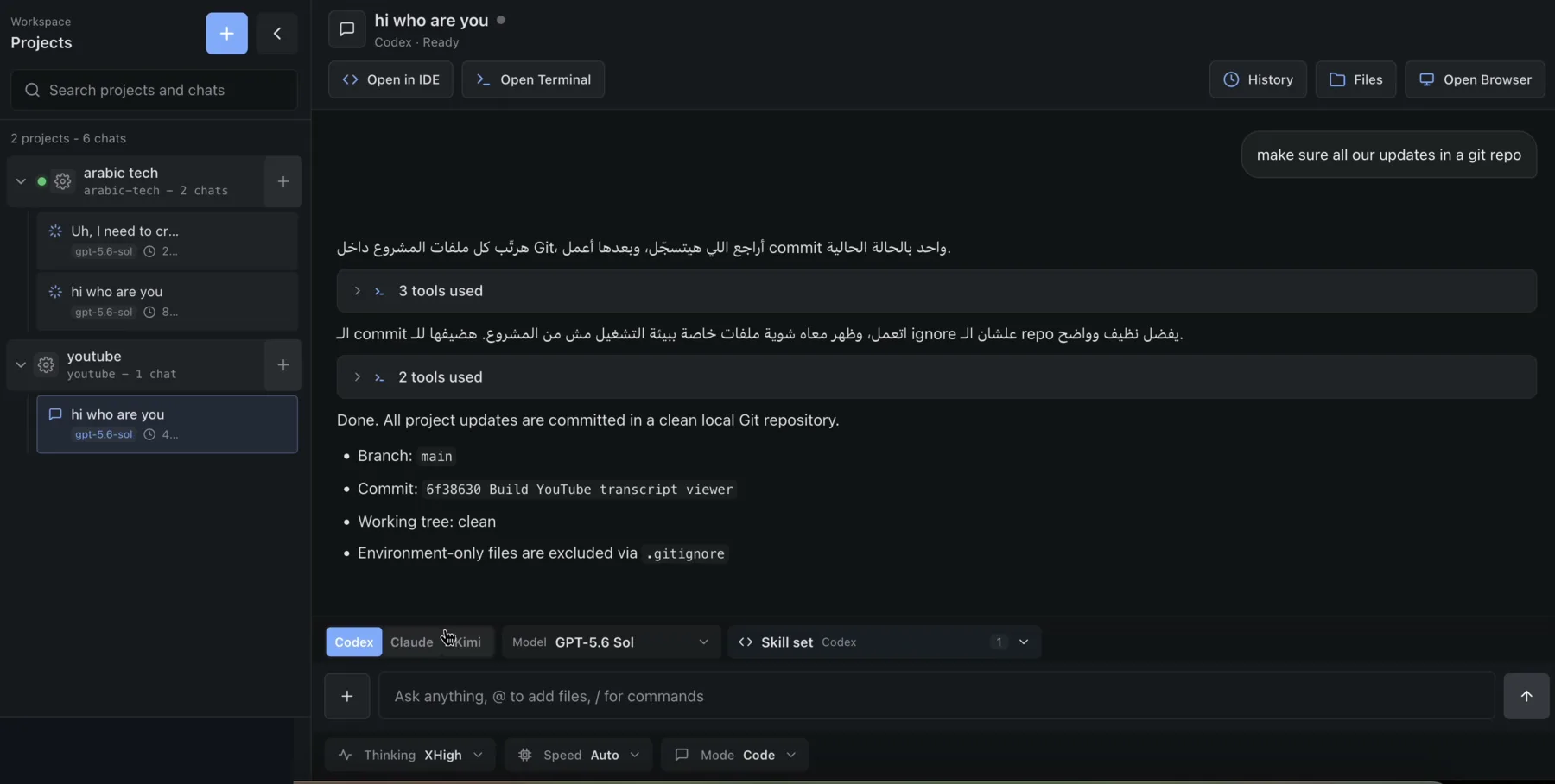
Thinking and speed#
Thinking contains the reasoning efforts reported for the selected model. It is hidden when that provider/model does not advertise an effort control. Claude, Codex, MiniMax, and Antigravity forward supported selections. MiniMax uses a binary thinking switch: Think-Off sends none, while Adaptive and Auto enable Adaptive Thinking at the documented high setting. Kimi currently shows and stores its per-model effort metadata but does not forward the chosen Thinking value when launching a run; Kimi uses its configured model/default effort instead.
Auto omits the explicit effort flag. The provider or model then chooses its default. Higher labels request more reasoning; they can increase latency and usage, and unsupported provider/model combinations may be rejected upstream.
Speed contains the service tiers reported for the selected model and is hidden when there are none. Auto omits an explicit tier.
Tier availability, behavior, cost, and quotas belong to the connected provider account. Remote does not guarantee that every model accepts every tier. Claude exposes Fast for Auto and Opus selections. Fast mode may switch Auto to an eligible Opus model, uses usage credits at a higher token price, and can be disabled by the connected organization or authentication provider.
Provider modes#
Default uses the provider's normal agent behavior. Plan invokes the provider's own planning mode and is shown when the backend adapter reports it. If a provider exposes only Default, the mode control is hidden. Claude's adapter declares its known native Plan mode; the other adapters derive it from their CLI surfaces.
Remote does not prepend custom Chat, Code, Review, Debug, or Full auto prompts. Default project runs remain approval-free inside the isolated project container. Plan-mode enforcement belongs to the provider and can differ: for example, Claude applies its read-only Plan permission mode while Codex and MiniMax apply native Codex-harness Plan collaboration instructions.
Changing Mode while a run is already active affects a later prompt, not the provider process that is currently producing output.
Do not select Plan for Kimi in the currently pinned release. Its CLI advertises --plan in help but rejects it together with the non-interactive prompt mode Remote uses, so that combination fails before a run begins.
Select skills#
- Select Skill set.
- Use the provider-labeled skill search when needed.
- Select a skill by name. Its source badge identifies where it was found.
- Repeat to combine skills.
- Remove a selected-skill chip before sending if it is not needed.
The catalog combines host skills and, for a project chat, accessible project-workspace skills. A provider change clears selected skills.
Current provider caveats:
- Claude receives a provider-specific slash-style skill trigger generated by Remote.
- Codex and MiniMax receive provider-specific dollar-style skill instructions generated by Remote.
- Kimi and Antigravity receive an instruction to read the selected skills from their canonical
SKILL.mdpaths. - The browser skill prepares per-run browser MCP access for Claude, Codex, and MiniMax, not Kimi or Antigravity.
These generated triggers are an internal integration detail. The composer does not currently implement general-purpose user @ mentions or slash commands.
Antigravity sign-in and output#
Antigravity appears in the administrator's Settings → Agents list as a provider-managed, instruction-only card. Its agy CLI has no host-wide login flow that Remote can safely complete and copy.
Before the first Antigravity prompt in a project:
- Open that project's Terminal.
- Run
agy. - Complete the URL-and-code sign-in shown by the CLI.
- Close the interactive CLI after sign-in.
- Return to the chat and choose Refresh models in the provider/model picker.
- Choose Antigravity, select a discovered model if needed, and send the prompt.
The sign-in is project-local. Its provider-owned files under /root/.gemini/antigravity-cli are mounted from the host and survive normal stop/start as well as container replacement. Other files under /root/.gemini are not part of that durable mount.
Antigravity print mode streams plain assistant text. It does not currently provide Remote's structured tool cards or usage totals. It can resume its conversation while the CLI brain directory remains present; a fork starts a fresh Antigravity conversation.
A loose chat probes any Antigravity state configured on the Remote host, but Remote provides no host agy sign-in UI and loose chats have no usable project Terminal. Use a project chat for the supported Antigravity sign-in flow.
Running-state rules#
- A chat permits one active prompt run at a time.
- Separate chats can run in parallel.
- While a chat is working, its header reads the provider name and Working; the sidebar shows a spinner.
- A second prompt entered in that chat is queued in the loaded page rather than started concurrently.
- Select Cancel or press Escape to request cancellation of the current run.
The server enforces the one-run-per-chat lock, but queued prompts are a browser feature. See Prompts, context, and conversation for queue persistence and recovery behavior.
Isolation warning for loose chats#
These controls are also shown for Loose chat, but the execution boundary is different. A loose chat runs its approval-free provider CLI directly as the backend service user on the host—root in production—not inside a project container. Use a project chat unless fully trusted host-level execution is intended.