
Files, Terminal, and IDE#
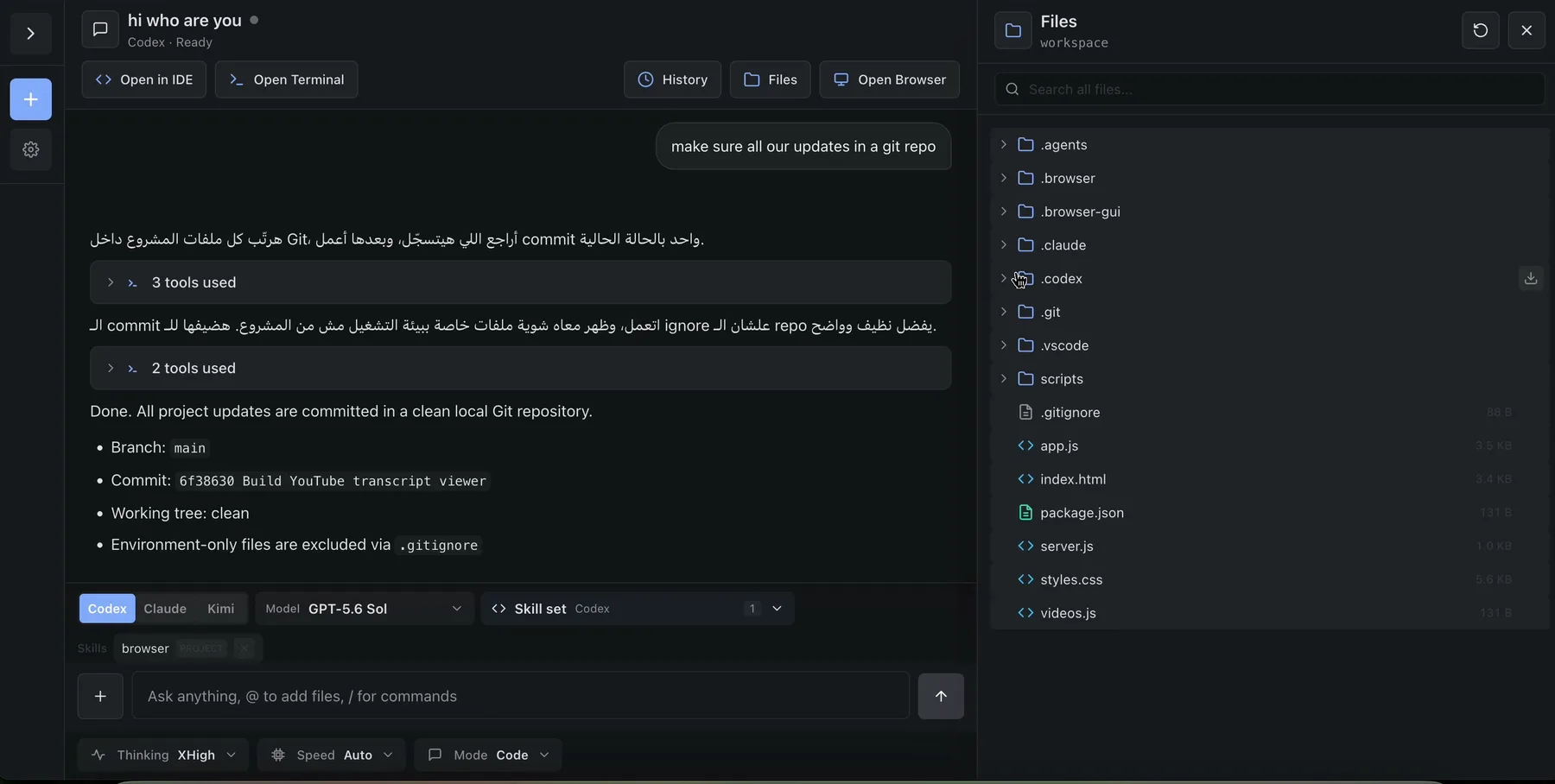
Files, Terminal, and IDE are three views of the same project workspace. Use Files to inspect and download, Open Terminal for direct shell work, and Open in IDE for code editing.
Before you begin#
- Open a chat inside the intended project. These workspace controls are not the isolation boundary for a Loose chat.
- Confirm the project is one you are allowed to change. Terminal and IDE actions can modify the durable workspace immediately.
- Remember that
/workspaceand the provider homes are durable, while arbitrary files elsewhere in the container root filesystem may disappear after container replacement.
Choose the right surface#
| Task | Surface | What it changes |
|---|---|---|
| Browse directories, open media/code, or download a file | Files | Nothing unless the opened IDE file is edited or a download is saved locally |
| Find a file by name | Files | Nothing |
| Download a directory as ZIP | Files | Creates a temporary server-side archive, then downloads it |
| Run a command or inspect a process | Open Terminal | Whatever the command changes |
| Read and edit a codebase | Open in IDE | Whatever is saved through code-server |
All three start from the chat's current working directory. In a normal project chat that is /workspace; a chat working in a contained subdirectory opens that location where supported.
Browse and download files#
- Open the project chat.
- Select Files in the chat header.
- Select a folder row to expand it. Subdirectories load as they are opened.
- Select a file row to open it in the media viewer, IDE, or download path described below.
- Hover or focus a file and select Download filename to download directly instead.
- To export a directory, hover or focus it and select Download folder as zip.
- Select Refresh after an agent or terminal command changes the tree.
- Select Close files when finished.
Outcome: supported media opens inside Remote, code/data/text opens in the project IDE, unsupported media and archives download, and folders download as ZIP archives. Editing still happens in code-server rather than inside the Files drawer.
Search by filename#
- Open Files.
- Enter at least two Unicode code points in Search all files....
- Select a matching file row to open it, or use its download control. Search result directories can be downloaded but are not expanded in the flat search view.
- If Remote says Showing the first matches only — refine your search to narrow it down, add a more specific substring.
- Select Clear search to return to the directory tree.
Search matches path names by substring. It does not search file contents.
Exact Files limits#
| Operation | Current limit |
|---|---|
| One directory listing | 10,000 entries |
| Minimum search query | 2 Unicode code points |
| Returned search matches | 300 |
| Entries visited by one search | 200,000 |
| Folder ZIP source data | 1 GiB |
| Folder ZIP compressed spool | 1 GiB |
| Entries in one folder ZIP | 200,000 |
| Folder ZIP jobs | 2 concurrently across the entire Remote server |
A directory can therefore show a truncated warning even when its contents exist. Search can stop at its visit cap before finding every possible match. A ZIP fails when either its source-byte, compressed-spool, or entry limit is reached.
Folder archives omit broken symlinks, symlinks that escape the workspace, and special files such as sockets or devices. They include regular files and safe directories.
What happens when you select a file#
| File type | Selection result |
|---|---|
| Supported image, audio, video, or PDF | Opens in Remote's full-screen media viewer |
| Code, data, text, log, or unknown non-media file | Opens that exact file in the project IDE |
| Archive or unsupported image/audio/video format | Downloads the file |
The media viewer provides Open in new tab, Download, and Close. Press Escape or select outside the content to close it.
Open workspace links from chat#
Validated absolute workspace links in an agent message follow the same split: supported media opens in the in-app viewer; other safe files redirect to the project IDE. A path can include :line or :line:column, and code-server opens the file at that exact location.
Examples:
/workspace/src/app.ts:42
/workspace/src/app.ts:42:7
Current inline media types are:
- images:
.avif,.bmp,.gif,.ico,.jpeg,.jpg,.png,.svg,.tif,.tiff, and.webp; - audio:
.aac,.flac,.m4a,.mp3,.oga,.ogg,.opus, and.wav; - video:
.m4v,.mov,.mp4,.ogv, and.webm; and - PDF:
.pdf.
Path containment is checked server-side; an outside or traversal path is rejected.
Run a terminal command#
- Select Open Terminal in a project chat.
- Wait until the header reads Terminal and the status becomes Connected.
- Check the path shown beside the status before running a command.
- Run the command in the interactive login shell.
- Select Close terminal when finished.
Outcome: Remote starts a fresh bash -l through a PTY inside the project container. The shell begins in the chat working directory when that path maps into the container, otherwise it falls back to /workspace.
On desktop, Terminal opens as a pane beside the chat. Drag its left edge to resize it; Remote remembers that width in this browser. Opening Files, History, Schedules, or Browser hides Terminal because workspace panes are mutually exclusive.
The status can read Connecting, Connected, Error, or Closed. If the project is stopped, opening the terminal first starts it.
The PTY is intentionally tied to its WebSocket. Hiding and reopening the Terminal pane in the same loaded chat preserves its shell and current input. Switching chats, losing the socket, reloading, or closing the page kills that shell. There is no reconnect after the socket is lost.
Use a process manager or a terminal multiplexer that you configure inside the project for work that must survive the page. Do not treat the Terminal pane itself as a durable process supervisor.
Open the browser IDE#
- Open the intended project chat.
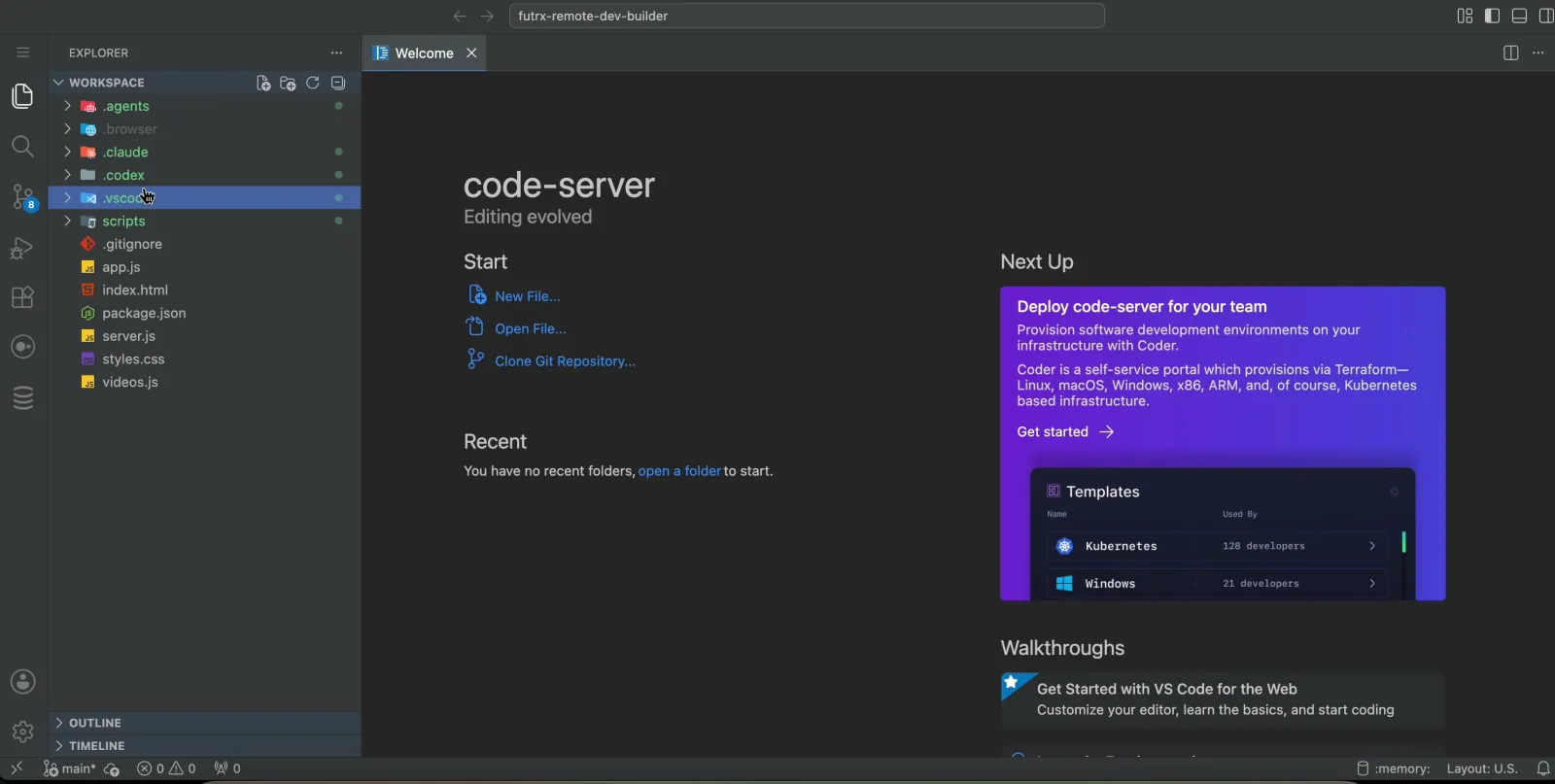
- Select Open in IDE.
- Allow the new tab if the browser blocks it.
- Wait for code-server to open the chat path, normally
/workspace. - Use the IDE's explorer, search, editor, and integrated tools normally.
Outcome: the browser opens the project's code-server instance on its dedicated IDE endpoint. File rows and agent-produced workspace links can target a validated file and optional line/column inside that IDE.
IDE authorization caveat#
The current IDE proxy verifies that the browser belongs to a registered Remote user, but it does not verify membership in the selected project. Any user invited to the Remote server can potentially open any project IDE.
This differs from Files, Terminal, and Preview endpoints, which enforce project membership or administrator access. Do not place mutually untrusted users on the same Remote installation until IDE membership enforcement is added.
Use the installable IDE launcher#
Open https://code.<your-remote-host> to see the available project IDEs in a dedicated launcher. That launcher includes a web-app manifest and minimal service worker, so a supporting browser can install it as a PWA for faster access to project editors.
The launcher always loads the live project list and does not provide offline project access. The main Remote chat application is also installable as a PWA, but it remains network-first: only a self-contained offline status page is cached, never the live workspace or agent data.
How the three paths meet#
A change saved by the agent, terminal, or IDE is visible to the other surfaces after refresh. The surfaces do not create separate copies or per-chat worktrees.