First run and sign-in#
Remote opens behind two gates:
- A registered platform user must sign in.
- At least one configured agent module that is eligible for onboarding must be ready.
The first person to open a new installation claims the local administrator account and, when required by the configured catalog, completes an agent access flow. Later users sign in with an invited Google account.
Claim a new server#
Only do this on a server you are authorized to administer. The claim form is public until the first administrator exists.
- Open the Remote server URL.
- On Create your admin account, enter an Admin email.
- Enter a password of at least 12 characters in Password.
- Enter it again in Confirm password.
- Select Create admin account.
Outcome: Remote creates the server's one local administrator identity, signs that administrator in, and moves to agent-provider setup.
The password is stored as a salted Argon2id hash. It cannot be displayed or recovered, so store it in an appropriate password manager.
A legacy installation may show Secure your admin account instead. Its existing administrator must sign in once and create the local password. Other users see a waiting screen until that is complete.
Make an onboarding agent ready#
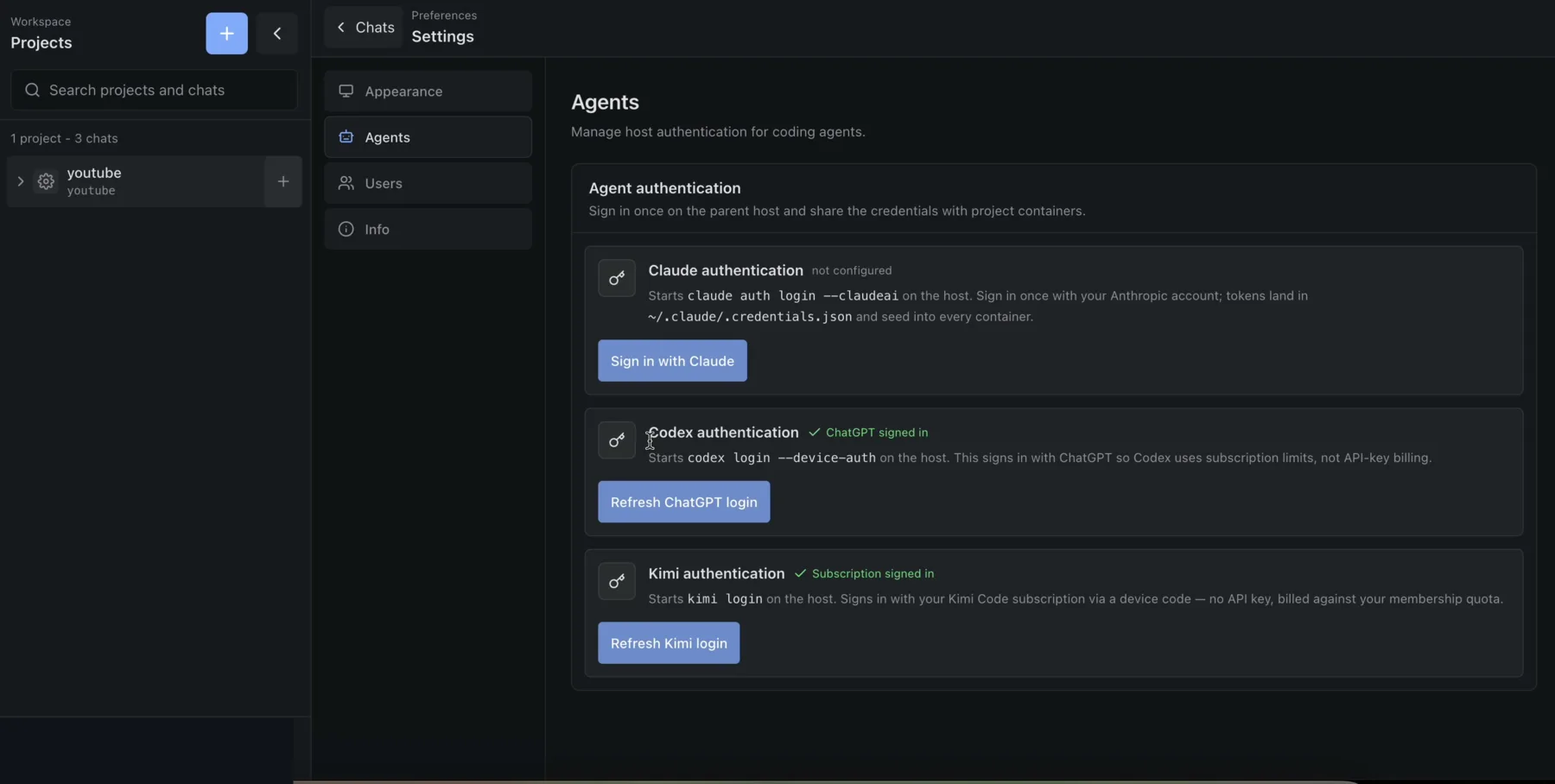
The Connect an AI provider screen is generated from the server's agent module catalog and shows only modules allowed to satisfy onboarding. With the current built-ins it shows Claude, Codex, and Kimi. Connect at least one to enter the workspace; the others can be connected later.
A future module may declare that no authentication is required. Such a module is ready immediately and opens the gate without presenting a sign-in action.
MiniMax and Antigravity are also available in project chats, but neither satisfies the initial provider gate. First connect Claude, Codex, or Kimi. You can then save the installation-wide MiniMax Token Plan subscription key in Settings → Agents, or sign in to Antigravity from a project's Terminal and choose Refresh models in the chat picker.
Claude#
- In Claude authentication, select Sign in with Claude.
- Open the authorization link.
- Complete the Anthropic sign-in.
- Paste the returned value into Paste your code here.
- Select Submit code.
- Wait for Subscription signed in.
Use Cancel to abandon an in-progress authorization. Once connected, the button changes to Refresh Claude login.
Codex#
- In Codex authentication, select Sign in with ChatGPT.
- In the device-login panel, copy the displayed code.
- Select Open, sign in with ChatGPT, and enter the code.
- Return to Remote and wait for ChatGPT signed in.
The code expires at the time shown in the panel. Start the flow again if it expires. Remote expects ChatGPT subscription authentication; an API-key-only Codex login is shown as API-key login detected and is not treated as the desired subscription login.
Kimi#
- In Kimi authentication, select Sign in with Kimi.
- Copy the displayed device code.
- Select Open and confirm the code with your Kimi account.
- Return to Remote and wait for Subscription signed in.
Outcome: as soon as any onboarding-eligible module is ready, the workspace opens. Managed modules become ready when authenticated; no-auth modules are ready immediately. The administrator can connect or refresh the other providers later through Settings → Agents.
For Antigravity's separate per-project sign-in, see Use Antigravity.
Sign in after setup#
Local administrator#
- Open the Remote server URL.
- On Sign in, enter the configured Admin email and Password.
- Select Sign in as administrator.
Invited user#
- Ask an administrator to register your email in Settings → Users.
- Open the Remote server URL.
- Select Sign in with Google.
- Choose the exact Google account whose email was invited.
Google sign-in appears only after an administrator has configured Google OAuth. There is no public self-registration. An unregistered account receives the message that the account is not invited.
Roles and availability#
| Capability | Local or invited administrator | Invited member |
|---|---|---|
| Sign in and use assigned projects | Yes | Yes |
| Access every project | Yes | No |
| Configure or refresh managed agent access | Yes | No |
| Configure Google OAuth and global users | Yes | No |
| Change project resource limits | Yes | No |
| Delete a project | Yes | No |
If no access-gate agent is ready, administrators see the applicable module cards and members see a waiting screen. A member cannot complete a managed agent-authentication flow.
Important trust boundary#
Provider credentials are host-wide, not personal to a user or project. An administrator signs in once on the parent host, and Remote seeds those credentials into project containers. Every authorized user who can run that provider therefore consumes the same connected provider account and quota.
This shared-credential rule applies to the Claude, Codex, and Kimi onboarding cards. Antigravity is different: its CLI sign-in is performed inside one project and persists in that project's mounted /root/.gemini/antigravity-cli provider directory across container replacement.
Platform sessions use a secure, HTTP-only cookie and currently last 30 days. There is no user-facing session-revocation screen; sign out with the Sign out control in the sidebar footer when using a shared browser.
Next steps#
Continue with Projects and the sidebar.
For the underlying access model, see Authentication, users, and access. For the complete trust analysis, see Threat model.