
Previews and element inspector#
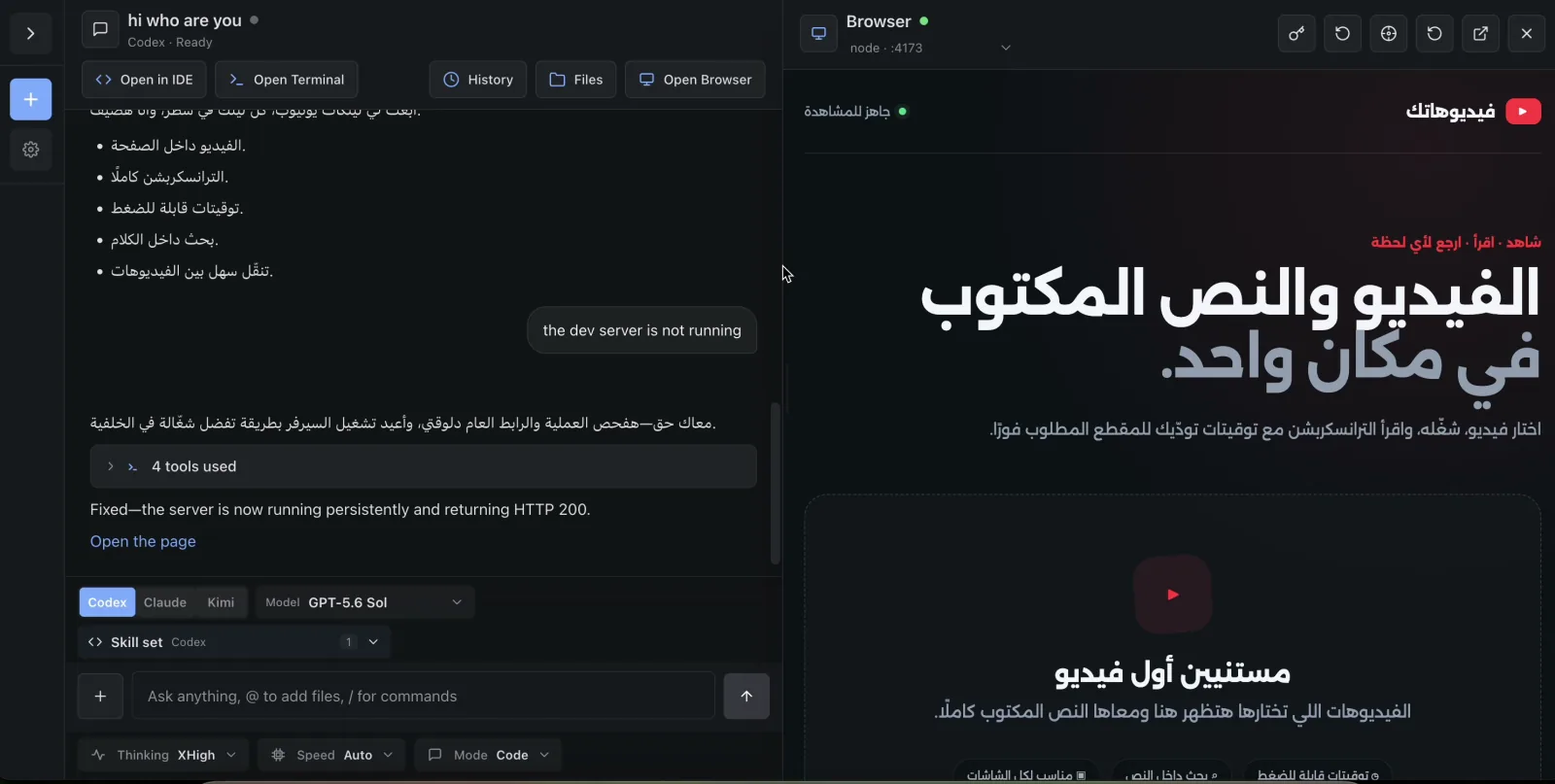
Preview puts a web app running inside the project beside its chat. Inspect mode then turns a visible element into structured context that can be sent back to the agent.
Before you begin#
- Use a project chat for a project you belong to, or an administrator account.
- Start an HTTP app inside the project container.
- Bind the app to
0.0.0.0or another non-loopback interface. A process bound only to127.0.0.1orlocalhostis not discoverable. - Listen on a port from 1024 through 65535, inclusive.
For example, many development servers accept a command shaped like:
npm run dev -- --host 0.0.0.0 --port 3000The exact flags belong to the framework. The essential requirements are a non-loopback binding and a supported port.
Open a live preview#
- Ask the agent to start the application, or start it with Open Terminal.
- Select Open Browser in the chat header.
- If the header reads Looking for running apps…, wait for discovery.
- If it reads No apps listening in project, select Refresh running apps after confirming the process is listening.
- Use the app picker to choose the desired
process · :port. - Use Reload after rebuilding or restarting the app.
- Use Open in new tab when the app needs more room or browser developer tools.
Outcome: Remote loads the selected project listener through its authenticated HTTPS preview hostname. The drawer stays beside the chat so the implementation and result can be reviewed together.
The UI can prefer a recent preview URL mentioned in the current chat when its project and port match a discovered listener. Otherwise it uses the selected listener from the picker.
Preview request path#
The first request for a new project-and-port hostname can be slower while on-demand TLS is issued. The TLS allow check confirms that the project slug and port are valid before a certificate is approved.
Select an element for the agent#
- Open the running app in Browser preview mode.
- Select Inspect element. The control changes to an active crosshair state.
- Move across the preview and use the highlight to find the target.
- Select the element once.
- Confirm that a [Browser element] context block appears in the composer.
- Add the desired change—for example, “Reduce the spacing above this card and preserve the mobile layout.”
- Send the prompt.
Outcome: selection exits inspect mode and gives the agent bounded, machine-readable context for the exact element instead of relying only on a verbal description.
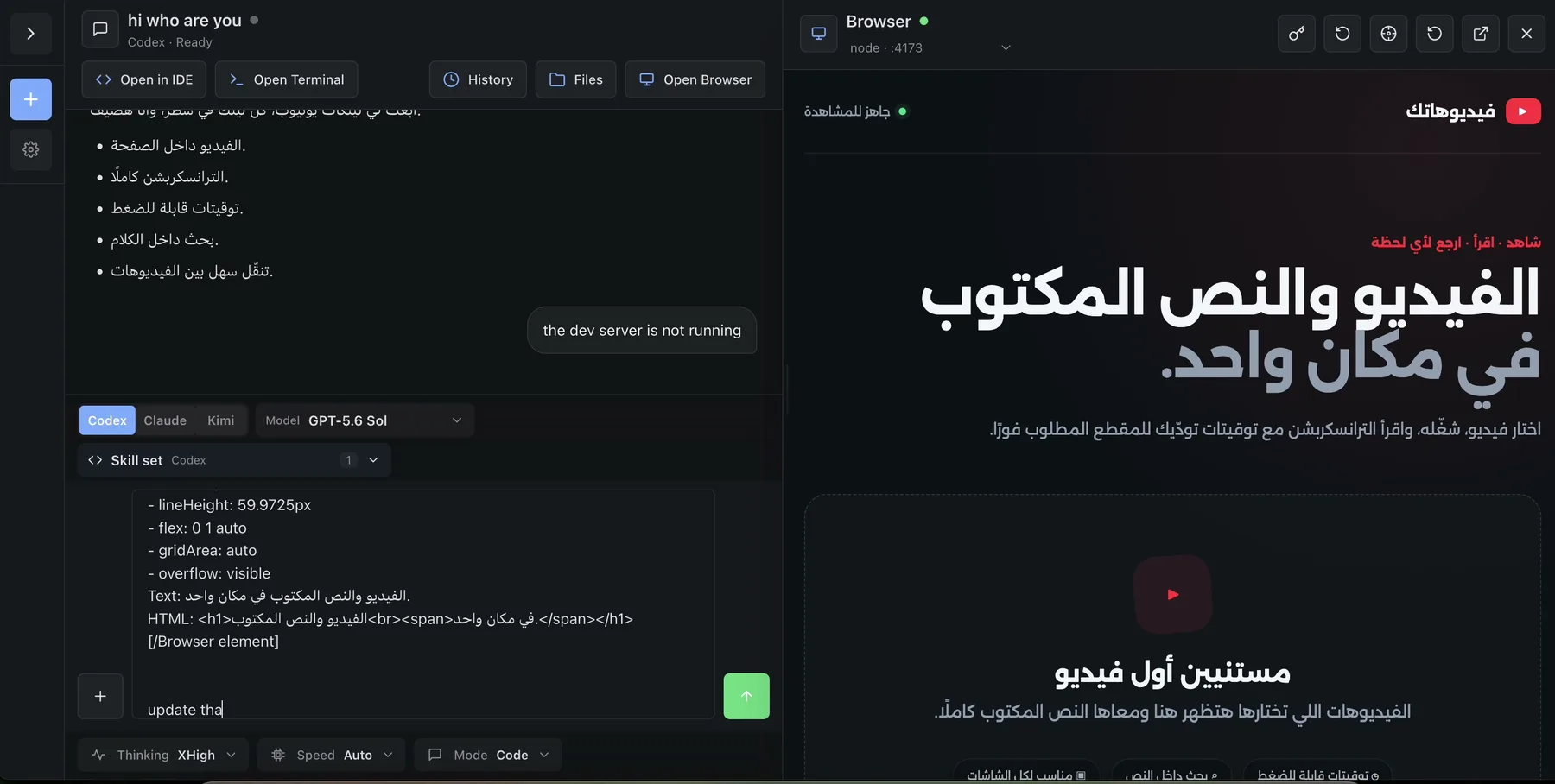
The captured context can include the preview URL and page title, a CSS selector, tag, ID, classes, role, accessible label, visible text, bounded HTML, element rectangle, viewport, a subset of computed styles, and a short parent chain. Text, markup, and ancestry are deliberately bounded; this is targeted element context, not a full-page source export.
Preview and inspector boundaries#
| Boundary | Current behavior |
|---|---|
| Listener discovery | Non-loopback TCP listeners only |
| Allowed ports | 1024–65535 |
| Preview access | Administrator or project member with a valid Remote session |
| Public sharing | No anonymous or public preview link |
| Platform cookies | Remote session, OAuth-state, and return-location cookies are removed before proxying to project code |
| Inspector origin | Same project preview origin through /__remote_inspector |
| Selected target | One preview process and port at a time |
| Browser modes | Inspect mode and Agent Browser mode are mutually exclusive |
Project code can still set and receive its own cookies. The cookie stripping protects Remote's control-plane cookies from being forwarded into the untrusted project application; it does not make that application trusted.
Inspect mode depends on the Remote same-origin wrapper. It is for the local app preview, not for arbitrary internet sites and not for the shared Agent Browser. Use Agent Browser when the task requires a real website or a signed-in browser profile.
When no app appears#
Check these in order:
- The project is running.
- The app process is still alive.
- Its socket is bound to
0.0.0.0or another non-loopback interface. - Its port is between 1024 and 65535.
- Refresh running apps has been selected.
- The project has a usable non-loopback IPv4 address.
If the picker is correct but the page still fails, check preview DNS, Caddy, project membership, and on-demand TLS. See Troubleshooting for the operator path.