
Projects and the sidebar#
A project is the normal unit of work in Remote. It combines a durable workspace, provider state, membership, secrets, and an isolated LXD container in which agents, terminals, the IDE, browsers, and development processes run.
Create a project#
- In the sidebar, select New project. On an empty workspace, you can also select the New project button in the center of the page.
- Enter a name in the New project modal. It validates the display name and previews the normalized slug, workspace path, and container name before any request is sent.
- Select Create project.
- Keep the modal open while it reports container provisioning progress.
- When provisioning finishes, select New chat in this project or expand the project and select New chat.
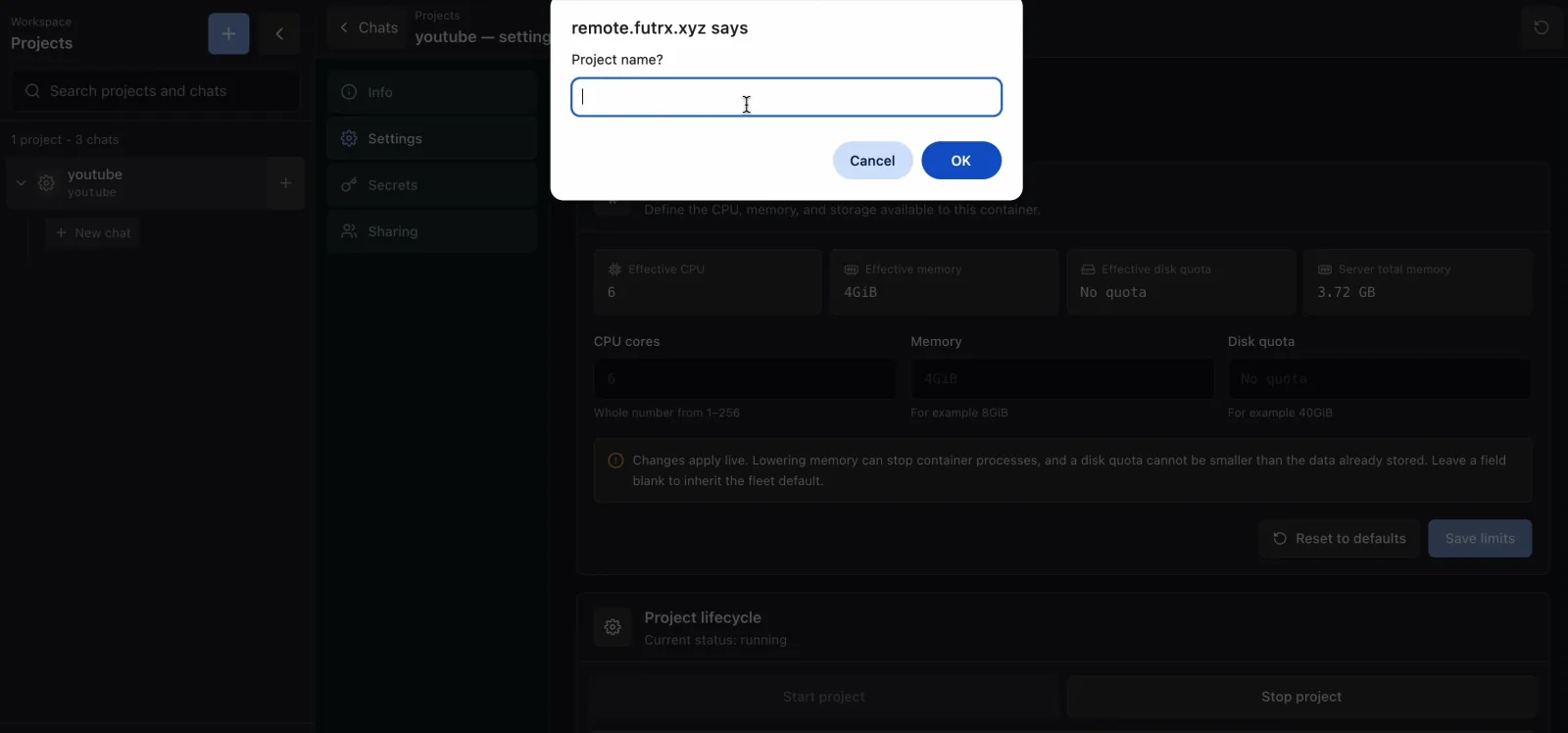
Outcome: Remote creates a unique project slug, durable workspace and agent home directories, a project membership record, and a container based on the server's development image. A display name already in use is rejected even if case or surrounding whitespace differs. Two genuinely different names that normalize to the same slug remain valid; later projects receive a numeric slug suffix such as -2.
The new-chat control is disabled and shows a spinner while the project is still provisioning. If provisioning fails, the sidebar displays the project error. Open Container info to inspect the failure or retry lifecycle actions.
Understand the sidebar#
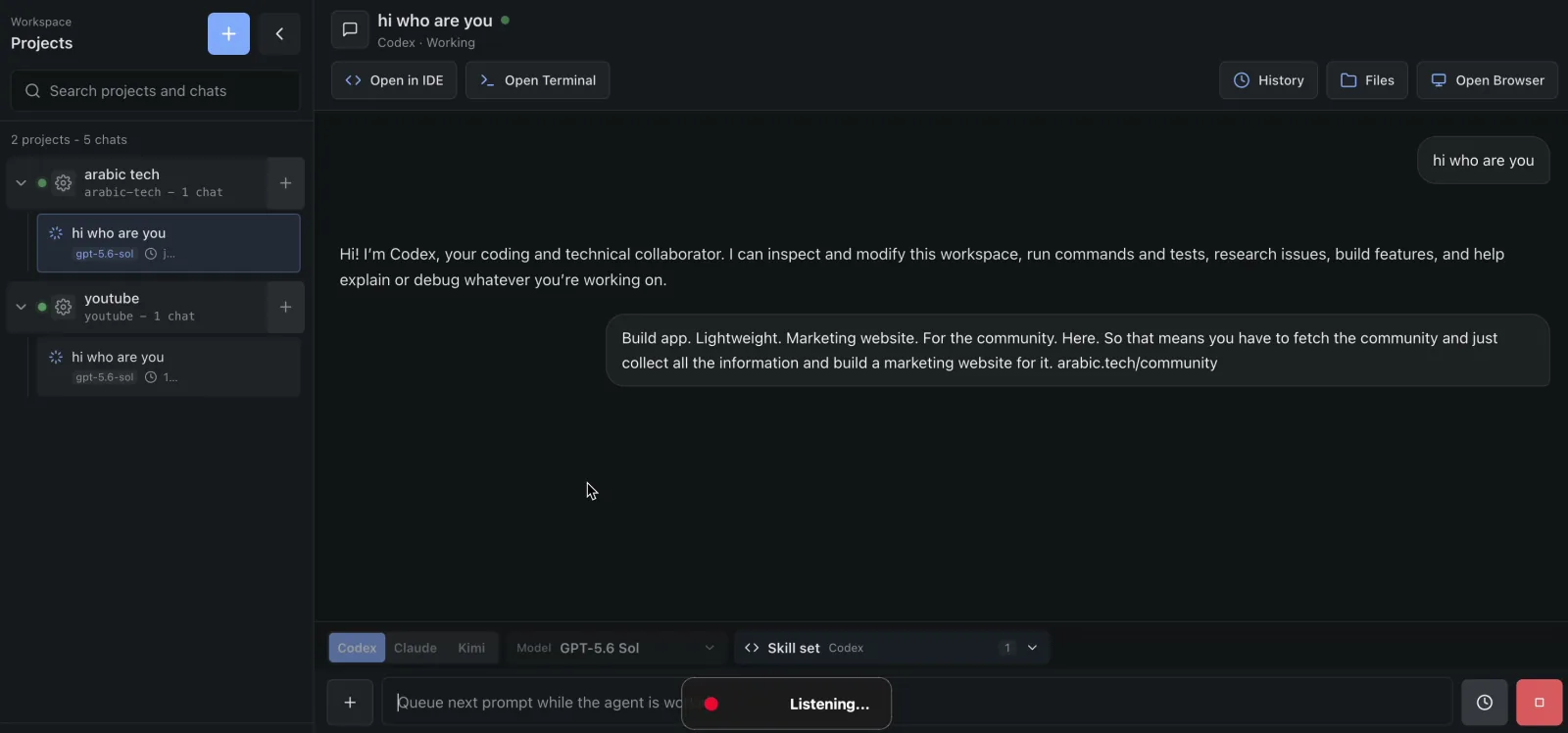
The expanded sidebar is headed Workspace → Projects. Each project row contains:
- an Expand or Collapse control;
- an unread indicator when one of its chats has unread output;
- Container info, shown as a settings control;
- the project name, slug, and chat count; and
- New chat in this project.
Each chat row shows its title, model label, last activity time, and one of a ready, running, or unread indicator. Hover a row on desktop to reveal Mark read or Mark unread, Fork from last message, and Delete chat.
Use Search projects and chats to filter both project names and chat titles. Select Clear search to return to the full list. Projects can be dragged into a new order only while search is empty. Use Collapse sidebar to keep a compact project rail on desktop; use Open chats or Toggle sidebar on a small screen.
Start work in a project#
- Expand the project.
- Select an existing chat, or select New chat.
- Choose the agent controls for the task.
- Send a prompt.
One prompt run is allowed per chat, but separate chats can run concurrently. The running spinner and unread indicators let you leave a long-running chat, work elsewhere, and return when output is available.
For agent selection, continue with Chat and agent controls. For prompting and parallel conversation patterns, see Prompts, context, and conversation.
Open project settings#
Select Container info beside the project name. The project page has four sections:
| Section | What it provides | Who can use it |
|---|---|---|
| Info | Container state, OS, resources, disks, network, workspace mount, agent versions, credential freshness, and network repair | Project members and administrators |
| Settings | Effective CPU, memory, and root-disk limits; Start project, Stop project, Force restart, and Delete project | Members can use lifecycle controls; only administrators can change limits or delete |
| Secrets | Add, reveal, edit, and delete environment secrets | Project members and administrators |
| Sharing | Add or remove registered users | Project members and administrators, subject to final-member safeguards |
Select Refresh to reload project information and Chats to return to the workspace.
Lifecycle outcomes#
- Stop project stops the container but preserves the durable workspace and provider homes.
- Start project starts the existing container or recreates it if it is missing.
- Force restart immediately kills processes inside the container and starts it again. Use it to recover a workspace that is unresponsive or at a resource limit.
- Delete project destroys the container and removes the project's durable workspace, provider homes, secrets, access list, and metadata.
Files under /workspace and provider homes survive ordinary stop, start, restart, and image replacement. Packages or files installed elsewhere in the container root filesystem do not survive container replacement.
Project deletion is destructive. The current backend does not reliably cascade-delete separately stored chat records that refer to the project, even though a confirmation may describe chats as being removed. Export or commit needed work first, and do not treat chat history as a backup of the workspace.
Work across projects in parallel#
Projects isolate filesystem and process state from one another. A useful workflow is:
- Start an implementation in one project chat.
- Open another project or chat from the sidebar.
- Start an independent review, research, or test task.
- Watch running and unread indicators.
- Return to each chat to review the result.
Concurrency is bounded by the parent server's CPU, memory, storage, provider limits, and any per-project resource limits. It is not unlimited.
Loose chats are outside project isolation#
When at least one project exists, the no-chat screen also offers Loose chat. Loose chats appear under Unassigned and do not have a project container, project terminal, preview, or project-specific workspace tools.
Security warning: the approval-free provider CLI for a loose chat currently runs directly as the backend service user on the parent host—root in the production systemd service—with access to the host environment and filesystem. Use project chats for ordinary work. Reserve loose chats for fully trusted administrative use until this boundary is redesigned.