
Project settings#
Open a project's settings with the gear icon beside its name in the sidebar. The page has four tabs: Info, Settings, Secrets, and Sharing.
Info#
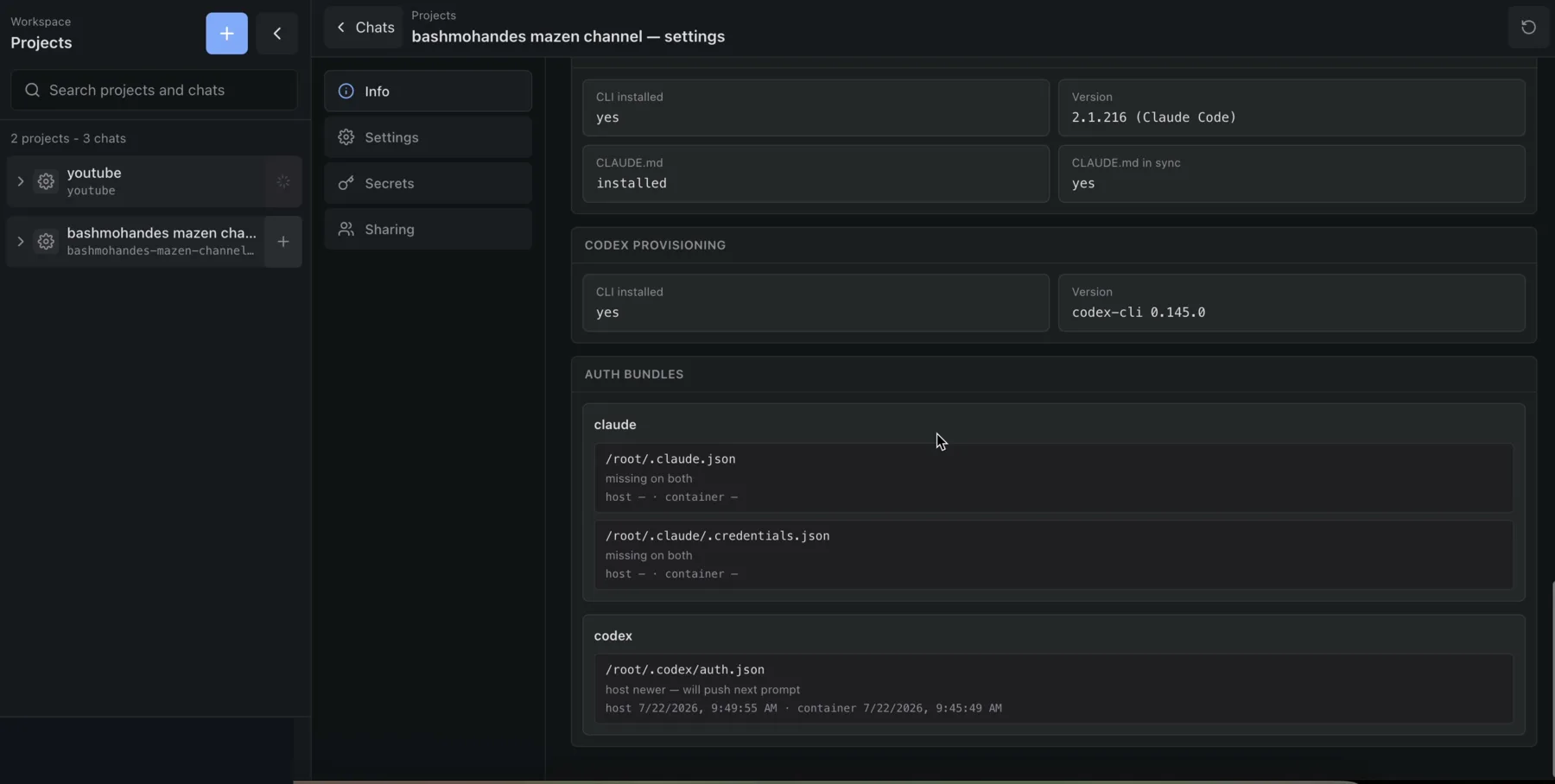
Use Info to answer “what is actually running?”
The page can report:
- container state, type, image, architecture, PID, creation time, last use, and autostart;
- operating-system distribution, kernel, hostname, uptime, and CPU count;
- process count, CPU time, current and peak memory, swap, and disk usage;
- interfaces, IP addresses, traffic counters, MAC addresses, and MTU;
- workspace and provider-home mounts;
- installed agent CLI versions and instruction state, including MiniMax's shared Codex harness;
- agent instructions and credential-bundle freshness;
- effective CPU, memory, and root-disk limits.
Choose Refresh in the page header to collect a new snapshot.
Repair project networking#
Use Repair network when the container is running but has no usable IPv4 address or previews cannot reach it.
- Open the project gear.
- Select Info.
- Find the network section.
- Choose Repair network.
- Refresh the page and confirm that a non-loopback address appears.
The host also runs a periodic IPv4 repair timer. Manual repair is the immediate recovery path.
Settings#
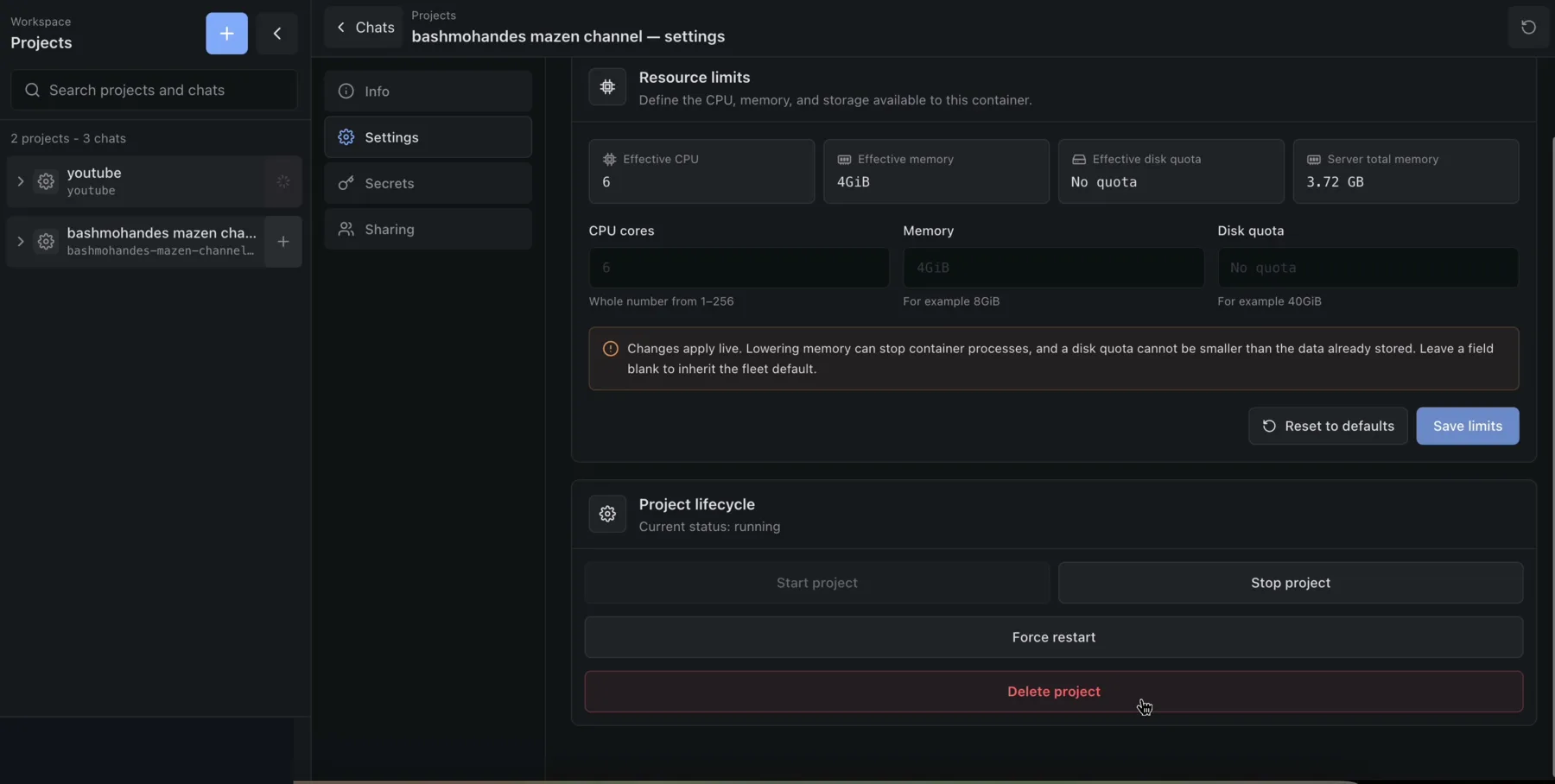
The Settings tab combines resource limits with project lifecycle controls.
Set resource limits#
Only an administrator can save project-specific limits.
- Open Settings.
- Enter any overrides you need:
- CPU cores;
- Memory;
- Disk quota.
- Leave a field blank to inherit the fleet default.
- Review the effective values and host-memory context.
- Choose Save limits.
Reset to defaults removes the project overrides. Changes apply live. Lowering memory can terminate container processes. A root-disk quota cannot be smaller than data already stored.
The default resource envelope is 6 CPUs, 4 GiB of memory, and 2,000 processes. The optional disk limit covers the container root disk, not the durable workspace or provider-home bind mounts.
Start, stop, and force-restart#
| Control | When to use it | What happens |
|---|---|---|
| Start project | The project is stopped, missing, or in error | Remote converges mounts and limits, starts or recreates the container, and runs launch provisioning |
| Stop project | You want to release active compute | The container stops; durable workspace and provider homes remain |
| Force restart | A process is wedged or the project hit its limits | The host kills project processes and boots the container again |
Starting a missing project can recreate its container from the current base image. Files in /workspace and provider homes remain; ad-hoc root-filesystem changes do not.
Delete a project#
Only an administrator can delete a project.
- Confirm that important work is committed and backed up.
- Open Settings.
- Choose Delete project.
- Read the confirmation carefully and approve it.
Deletion removes the container, project metadata, project access list, secret store, durable workspace, and provider homes. Chat records are stored separately and the backend does not reliably cascade-delete every chat that referenced the project. Do not treat the sidebar confirmation as a backup or complete data-retention policy.
Secrets#
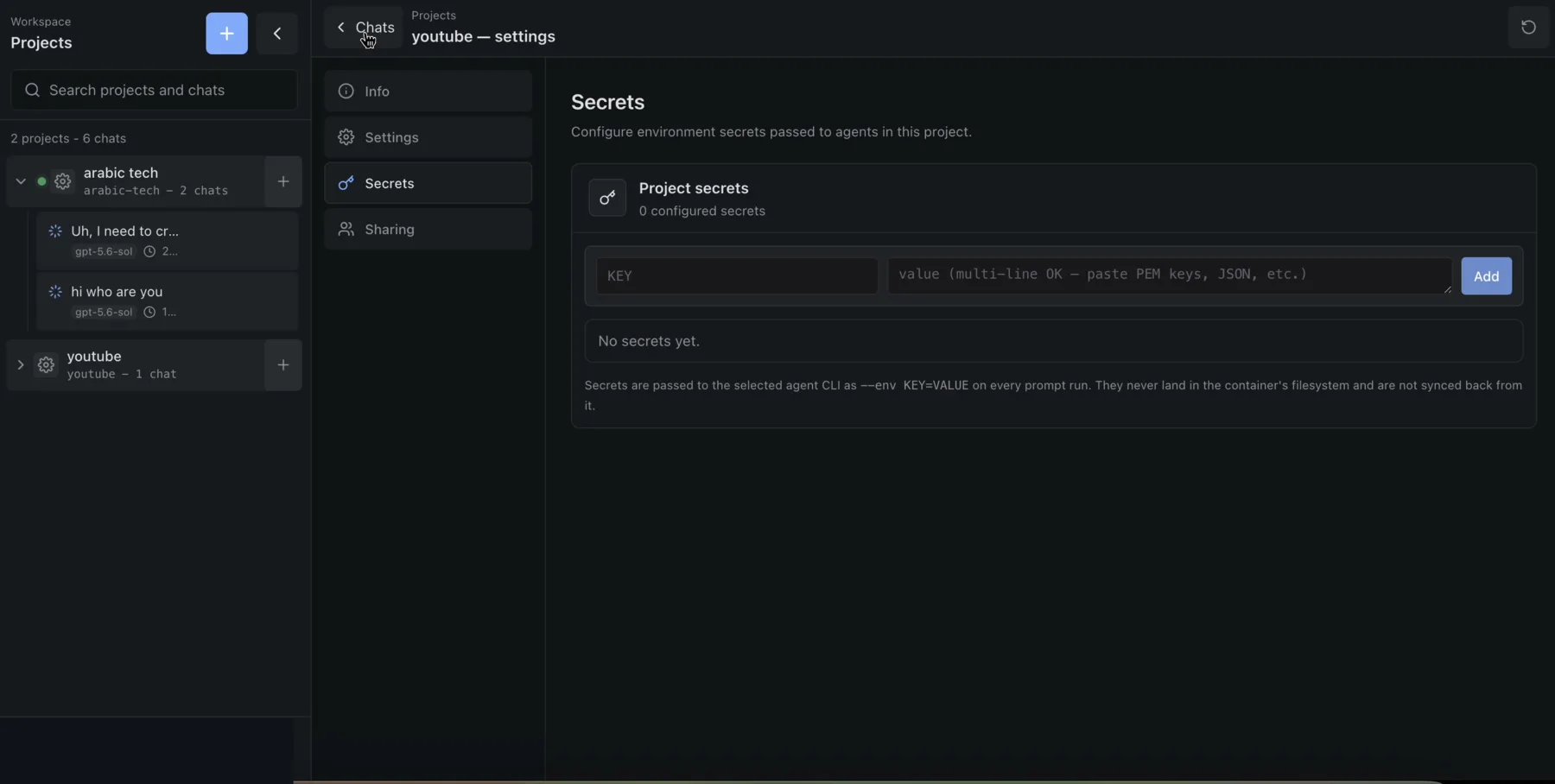
Use Secrets for project-scoped environment values such as API tokens, webhook secrets, JSON credentials, or PEM material.
Add a secret#
- Open Secrets.
- Enter a key such as
API_TOKEN. - Enter the value. Multiline values are supported.
- Choose Add.
- Restart any already-running application that must read the new value.
Keys must match:
[A-Za-z_][A-Za-z0-9_]*Reveal, edit, or delete#
- Choose show or hide to control the visible value.
- Choose edit, change the value, then Save.
- Choose the delete icon and confirm to remove it.
Where values go#
The current backend:
- stores the authoritative secret file on the host in plaintext with mode
0600; - passes project secrets explicitly to agent runs, except that Codex clears or does not forward
OPENAI_API_KEYso it uses subscription authentication; - writes all values to managed
/workspace/.envwith mode0600; - also puts single-line values into LXD
environment.KEYfor new inherited processes; - omits multiline values from LXD config, while still passing them to agents and
.env.
Propagation after a change is best-effort. A stale copy can remain after a partial failure, and an already-running process keeps its old environment. Restart affected processes and verify from inside the project.
Project members can read, reveal, change, and delete project secrets. Agents can read them during execution. Sharing the project shares this authority.
The current Secrets UI contains older helper text claiming values never land in the container filesystem. That statement is no longer accurate; the behavior above reflects the current backend.
Sharing#
Use Sharing to decide which registered users can enter this project.
Add a member#
- Ask an administrator to add the person's email in Settings → Users first.
- Open the project gear.
- Select Sharing.
- Enter the exact registered email.
- Choose Add.
The member can now use the project's chats, uploads, terminal, files, preview, Agent Browser, and secrets.
Remove a member#
- Open Sharing.
- Find the email.
- Choose the remove icon.
- Confirm removal.
Any current project member can add or remove registered members. A non-admin cannot remove the final project member. Administrators bypass the membership list and can recover access.
Project-settings permissions#
| Action | Admin | Project member |
|---|---|---|
| View Info and refresh diagnostics | Yes | Yes |
| Repair network | Yes | Yes |
| Start, stop, or force-restart | Yes | Yes |
| Read or change secrets | Yes | Yes |
| Add or remove project members | Yes | Yes |
| Save or reset resource limits | Yes | No |
| Delete project | Yes | No |
For storage and lifecycle details, see Projects and containers. For security implications, see the Threat model.