
Everyday workflows#
These recipes combine the individual controls into complete ways of working.
Build a new web application#
- Choose New project and name the workspace.
- Wait for the project to finish provisioning.
- Create a chat with the + beside the project.
- Choose a provider, model, Thinking, and Mode.
- In the prompt, state the outcome, constraints, and how the result should be verified.
- Ask the agent to start the development server on
0.0.0.0using a port from 1024 through 65535. - Watch streamed text and tool cards; expand a tool card when you need exact command or file details.
- Choose Open Browser, refresh app discovery, and select the process and port.
- Inspect the result in the split view.
- Ask for tests and a Git commit.
- Open History or Open in IDE for independent verification.
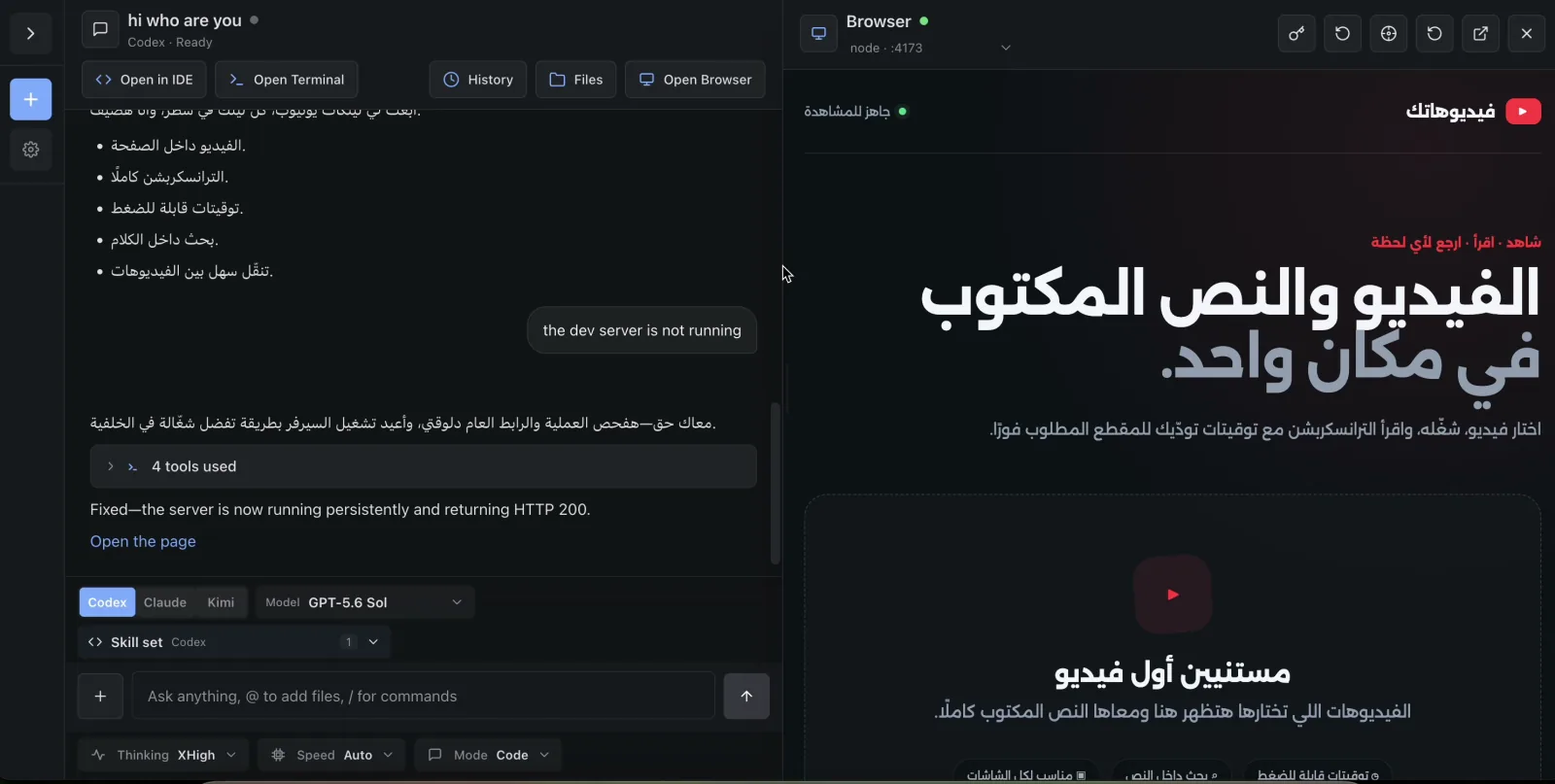
Improve a visible UI element#
- Open the project chat and choose Open Browser.
- Select the running application.
- Choose the crosshair Inspect element control.
- Hover until the intended element is highlighted.
- Click the element.
- Confirm that the structured Browser element context appeared in the composer.
- Add the desired change in plain language.
- Send the prompt.
- Reload the preview and inspect the result again.
This workflow gives the agent selector, text, HTML, bounding-box, style, and parent context without asking you to describe the element from memory.
Run several agents in parallel#
Parallelism happens across chats and projects, not inside one chat.
- Create one chat for each independent workstream.
- Give each chat a narrow goal and verification criteria.
- Send the prompts.
- Use sidebar spinners and unread dots to monitor state.
- Move between chats while they run.
- Queue at most the immediate next instruction in a busy chat.
- Review and integrate each result before sending overlapping file changes.
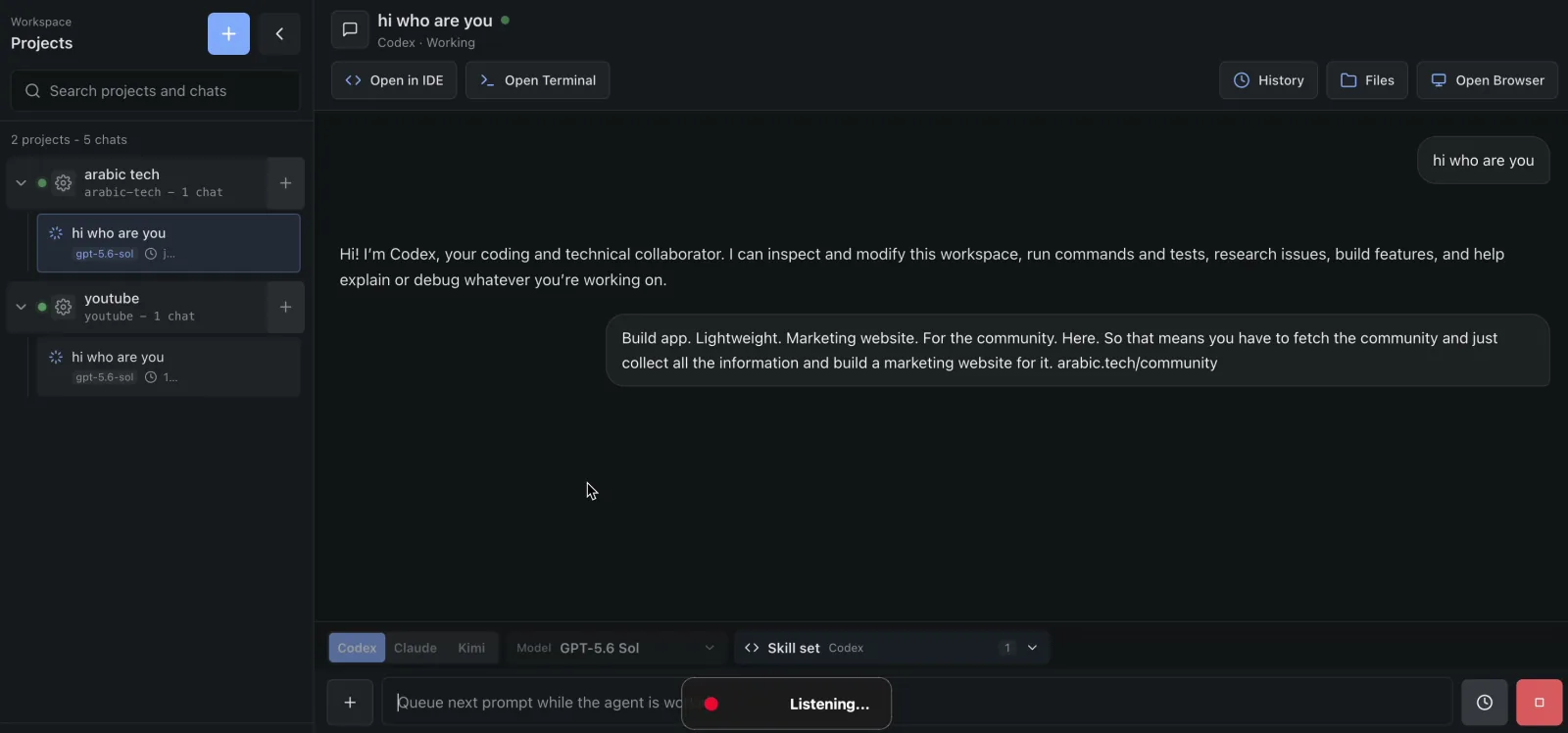
Concurrent chats in one project share the same files, processes, ports, browser profile, and Git repositories. They can race. Separate projects provide a stronger execution boundary.
Switch provider without moving the project#
- Open the existing project chat.
- Wait for any active run to finish or cancel it.
- Choose Codex, MiniMax, Claude, Kimi, or Antigravity in the composer.
- Recheck the model, thinking level, speed, and selected skills.
- State what the new provider should continue or verify.
- Send the prompt.
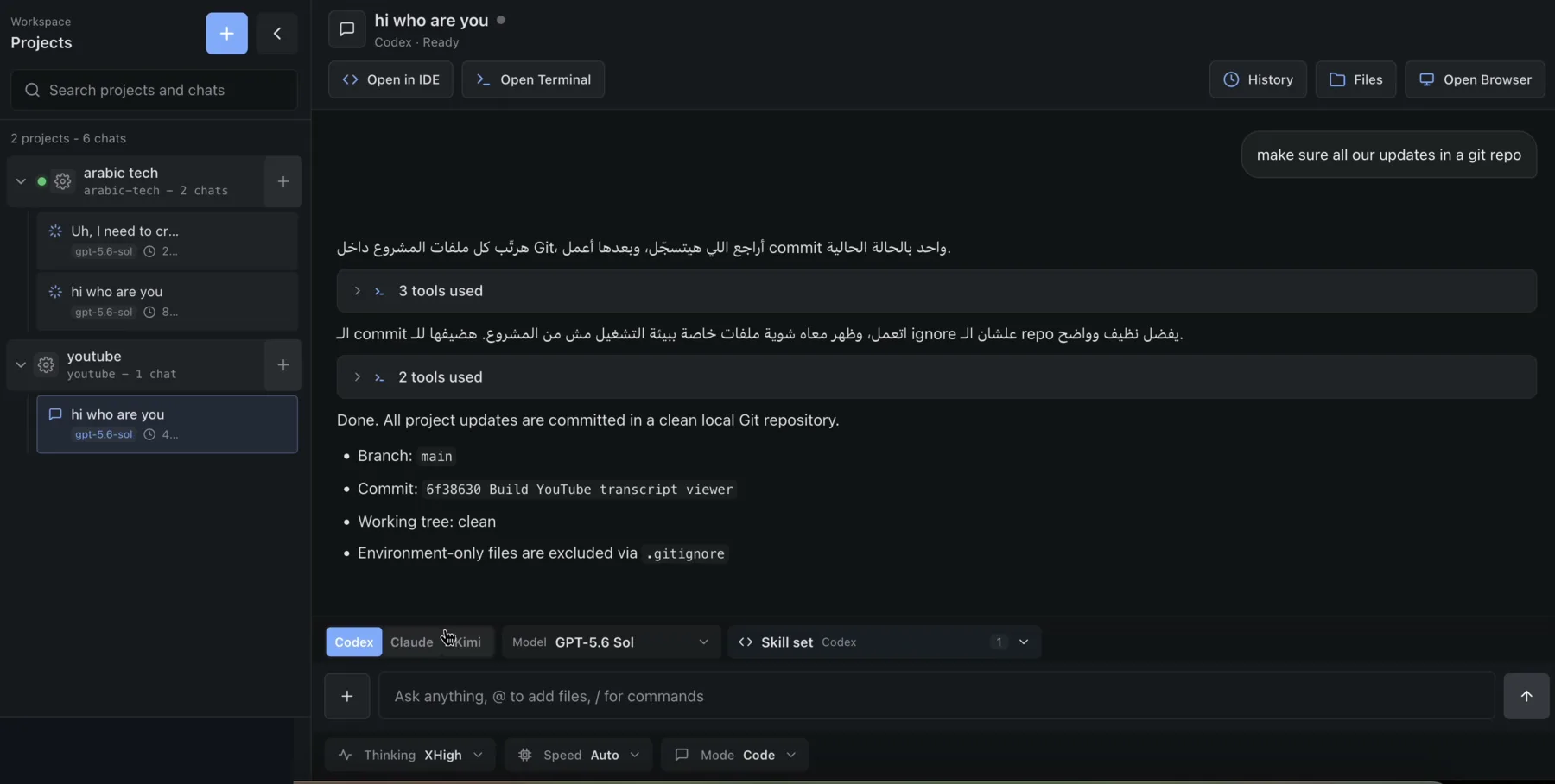
The files stay in the project. Provider-native session state does not transfer cleanly; when a provider session is missing, Remote supplies a bounded visible transcript to a fresh session. Kimi and Antigravity forks start fresh.
Antigravity must first be signed in by running agy in that project's Terminal. Exit the CLI and choose Refresh models in the chat picker before selecting it. Its sign-in and session state are not part of Remote's durable provider-home mounts.
Schedule a monitor and walk away#
- Open the project chat that should own the future work.
- Select Scheduled Tasks in Skill set.
- Ask the agent to create a one-time or recurring task with an explicit timezone, completion condition, and maximum run count.
- Wait for the agent to report the parked task.
- Open Schedules in the chat header.
- Review the saved prompt, timing, timezone, and limit.
- Select Arm.
- Close the browser if desired. The host scheduler owns the timer.
- Return later to the same chat to inspect each scheduled run in the normal transcript.
Pause the task when monitoring should stop temporarily. Let the agent complete the standing task only after the declared goal is actually terminal. See Scheduled tasks for overlap, ownership, and server guardrails.
Give an agent a signed-in website#
Use the Agent Browser when the task needs a real login, consent screen, anti-bot checkpoint, or visual interaction that the project preview cannot provide.
- Open Open Browser.
- Toggle the key-shaped Agent browser control.
- Wait for the live browser pane.
- Sign in yourself.
- Return to the composer.
- Select the
browserskill for Claude, Codex, or MiniMax. - Describe the permitted website task and the stopping condition.
- Watch the shared browser and intervene when needed.
- Use the square Stop the agent browser control when finished.
The agent and human share one browser profile and one window. Never sign in to an account whose authority you are unwilling to expose to the agent.
Use a secret-dependent service#
- Open the project gear and select Secrets.
- Add the required key and value.
- Restart the application process that needs it.
- Ask the agent to verify only that the variable exists or that the service connects; do not ask it to echo the value.
- Use
/workspace/.envonly through a library that deliberately loads dotenv files. - Delete or rotate the secret when the integration is no longer needed.
Project secrets are readable by every project member and every agent run. They are not an approval boundary.
Make a risky change with a recovery point#
- Open History and check whether the repository is clean.
- If the tree is dirty, ask the agent to make a meaningful commit or create one in Terminal.
- Fork the chat if you want to preserve the original conversational branch.
- Run the experiment.
- Inspect the diff and application result.
- If you need the old code, select the earlier commit and choose Switch.
- If new dirty changes block Switch, commit or stash them in Terminal, refresh History, and try again.
Git protects tracked project files. It does not back up chats, secrets, users, browser sessions, or untracked external state.
The backend supports an automatic safety-checkpoint checkout, but the current History drawer does not render the checkpoint form needed to complete that path. Use Terminal for dirty-tree recovery until the UI is finished.
Collaborate with another person#
Administrator:
- Configure Google OAuth in Settings → Users.
- Add the person's email as member or admin.
Project member:
- Open the project gear.
- Select Sharing.
- Add the registered email.
- Tell the person which project to open.
The new member gains the project's terminal, chats, secrets, uploads, preview, browser, and membership controls. Do not share a project as a read-only review link; Remote currently has no read-only project role or anonymous preview.
Recover an unresponsive project#
- Open the project gear.
- Check Info for state, memory, process, disk, and network symptoms.
- If networking is missing, choose Repair network.
- If internal processes are wedged, open Settings and choose Force restart.
- If the project is stopped or missing, choose Start project.
- If resource limits caused the problem, ask an admin to raise the relevant limit.
- Reopen the chat and verify files, agent authentication, IDE, and preview.
Force restart is driven by the host, so it can recover a container that cannot respond from inside. A backend restart loses the run lock, cancellation handle, and event-stream ownership. Because the production unit uses KillMode=process, an lxc exec child can remain alive but orphaned; the control plane cannot reattach to it.
Download a deliverable#
- Ask the agent to put the final artifact in
/workspace. - Choose Files.
- Expand folders or use filename search.
- Hover the file and choose download.
- For a directory, choose the folder download action to receive a ZIP.
Folder archives are limited to 1 GiB and two concurrent downloads server-wide. For larger artifacts, use the terminal, Git, or an external object store.
Keep the laptop lightweight#
- Run provider CLIs, builds, IDE, browser, and project processes inside the Remote project.
- Keep only the Remote control surface open locally.
- Stop projects when they no longer need active processes.
- Use project limits to prevent one workload from taking the server.
- Watch host capacity under Settings → Info.
Remote relocates compute; it does not eliminate it. See the measured snapshot and methodology in Philosophy.